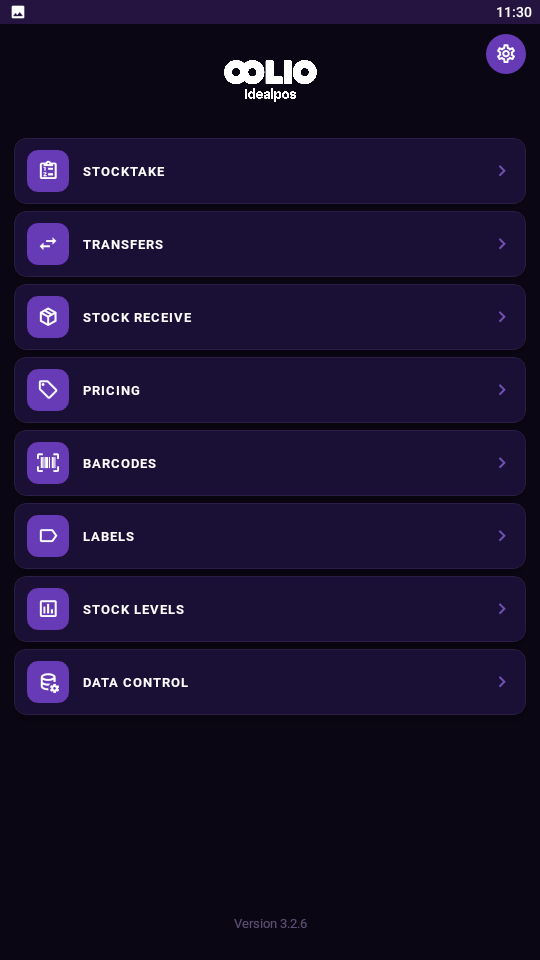

The Stock Receive menu allows you to receive items from an invoice and update stock levels in the database.
Before receiving it is a good idea to download the data from Idealpos, as new details may have been added.
If the data was not cleared from previous Receiving, you can download the data again which will overwrite any data on the device.
Once you have downloaded your data, go to the Receiving menu from the main screen.
Any items that you have previously entered will be displayed here, otherwise the page will be blank.
As soon as you change a field from default you will have created a record, which can be deleted if you don’t want it.
Swipe the record from right to left to delete it from the list.
Press the + button to add a new record.
The ‘Details’ screen will open where you can enter various details from the invoice.
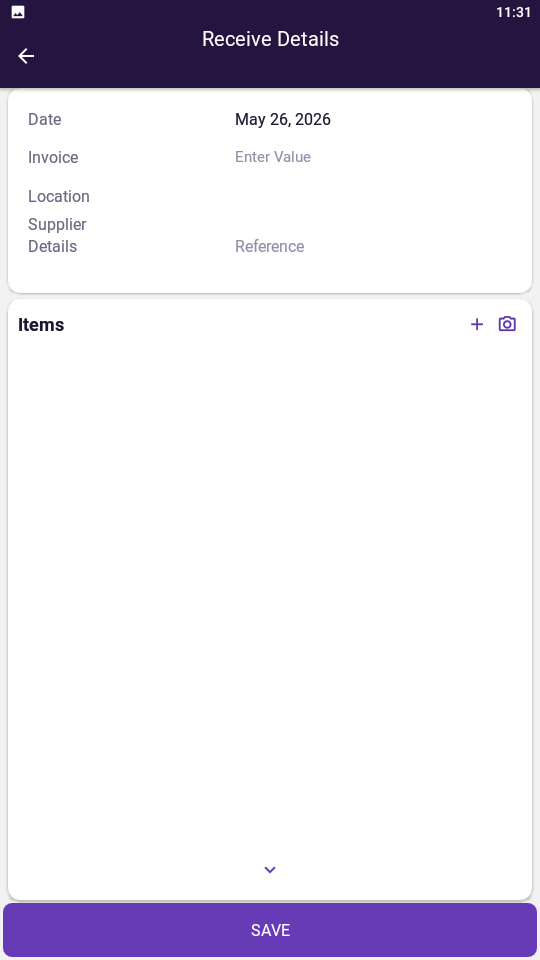
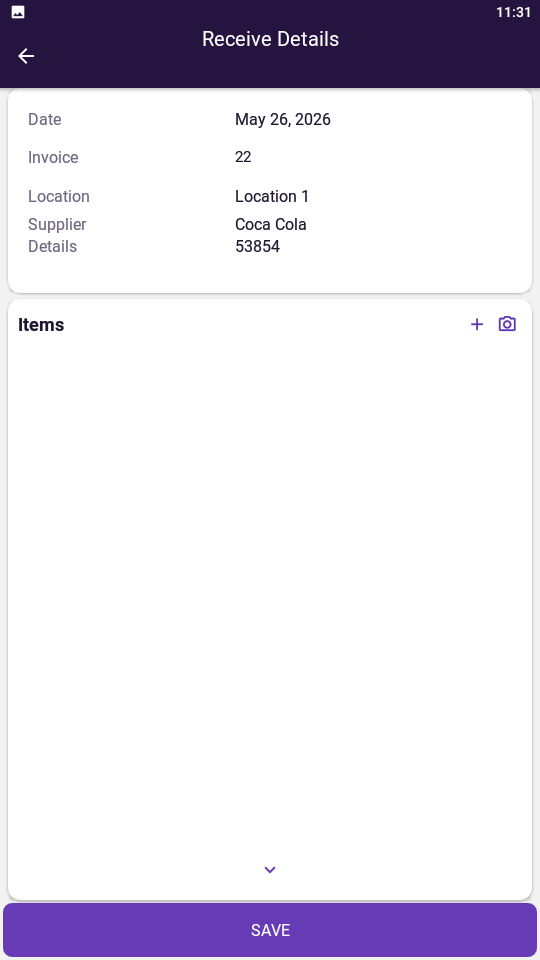
Enter the Invoice Number to match the record with the paperwork.
Enter the Location where the stock will be received into.
Select a Supplier that supplies you the goods.
Enter any other details that you want recorded.
Tip!
There are two different screens from which you can add Stock Items to the Stock Receive.
The behaviour between the two screens varies slightly when searching/adding items to the Stock Receive.
From the main Receive Details screen:
Press the "+" button on the right-hand side > Search for an item.
Or
Press the down arrow button at the bottom of the screen > Press the "+" button on the top-right corner > Search for an item.
press the down arrow button at the bottom of the screen.
The Receive Items screen is displayed.
You can scan the item's barcode if it is in your database, or you can search for the item from the list by pressing the "+" button.
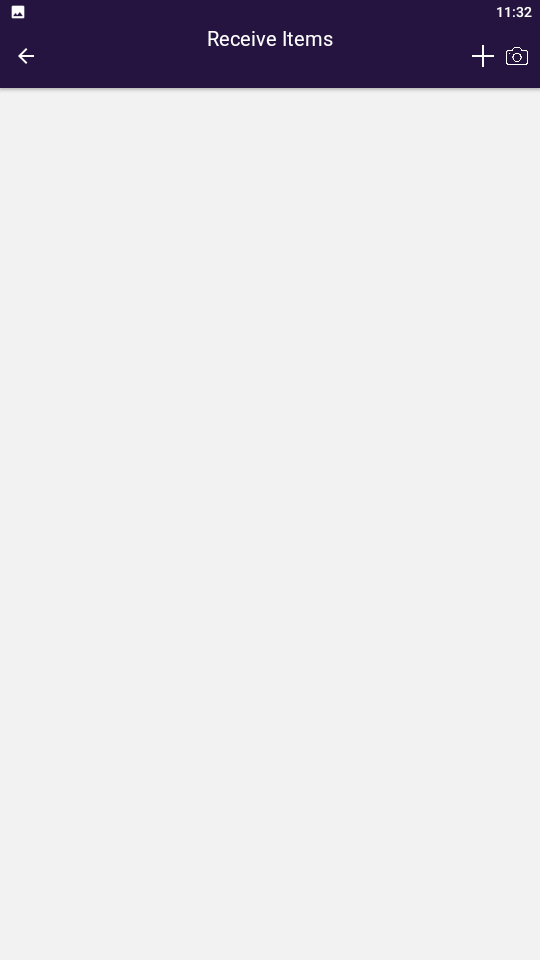
Find the item you want to add and select the item from the list.
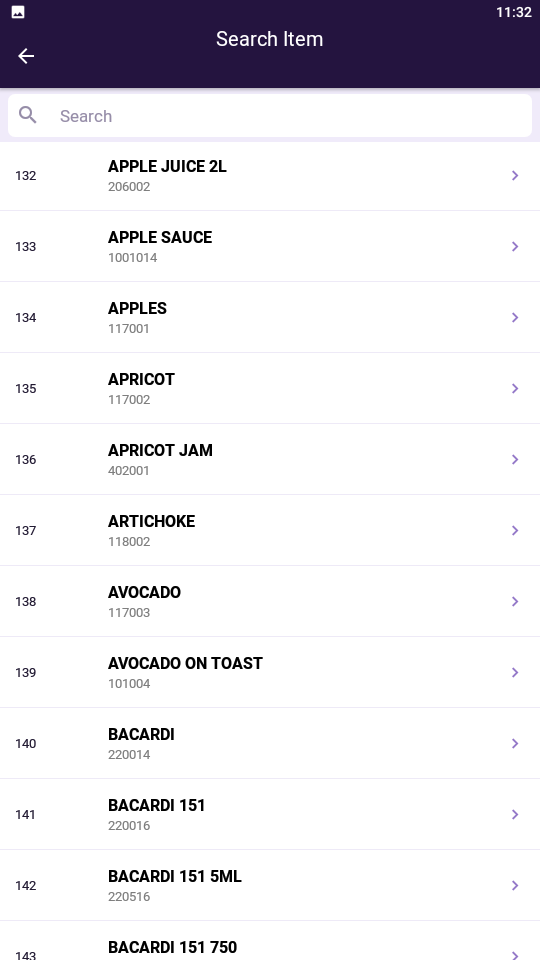
Enter the Quantity received and the Cost from the invoice.
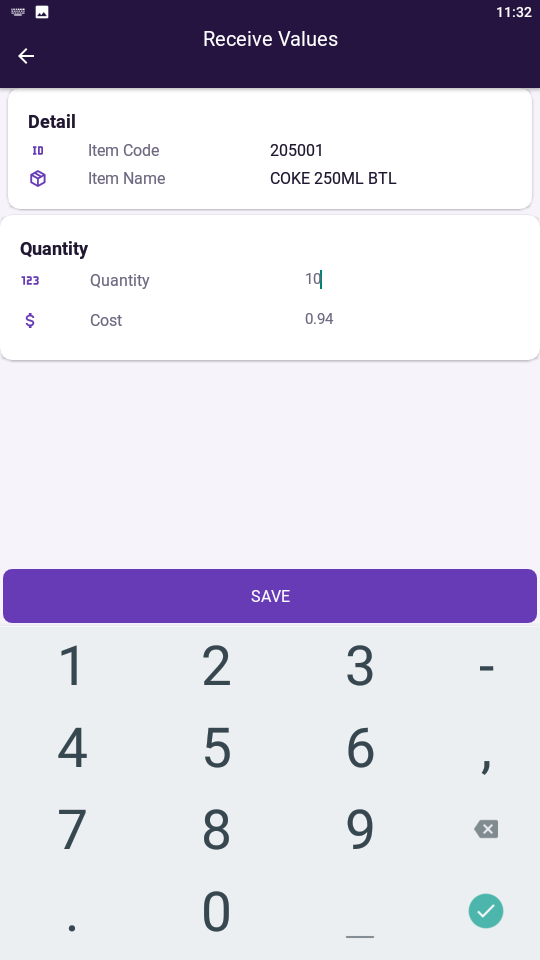
Repeat this process for all other items on the invoice.
The Stock Receive invoice will need to be uploaded before it will be visible in Idealpos.